3.3.4 Scenario Customization Settings
You can configure the following settings for each request executed during the test:
- Randomization of Parameters
- Using User-defined Variables
- Reuse of Response Data (Body/Header)
- Reuse of Response Data (URL)
- Resource Download
- File Upload
- Using CSV Files
- Generates random content for the specified parameters on a per-request basis.
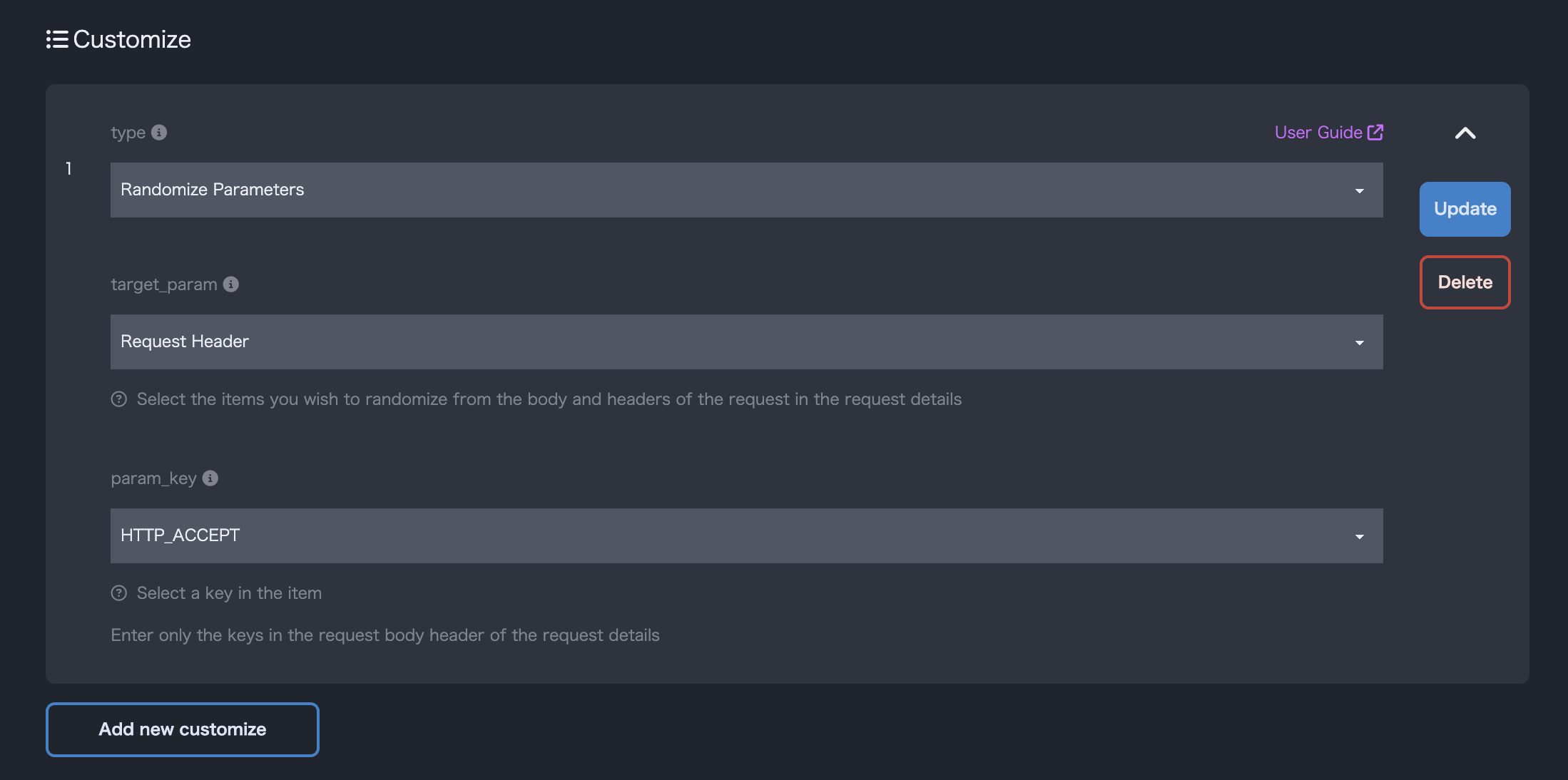
| Parameter Name | Setting Value | Sample |
|---|---|---|
| Customization Name | Randomization of Parameters | - |
| Parameter Location | Specify where the target key is located. If the key is in the request header, specify header_params; if it’s in the request body, specify body_params. |
body_params |
| Parameter Name | Request Key Name |
- Sets the content of user-defined variables to the specified parameters.
- User-defined variables can be registered from the
project details screen. Multiple values can be registered for one variable in list format. - During load testing, values are set for each request in the order of the variable list.
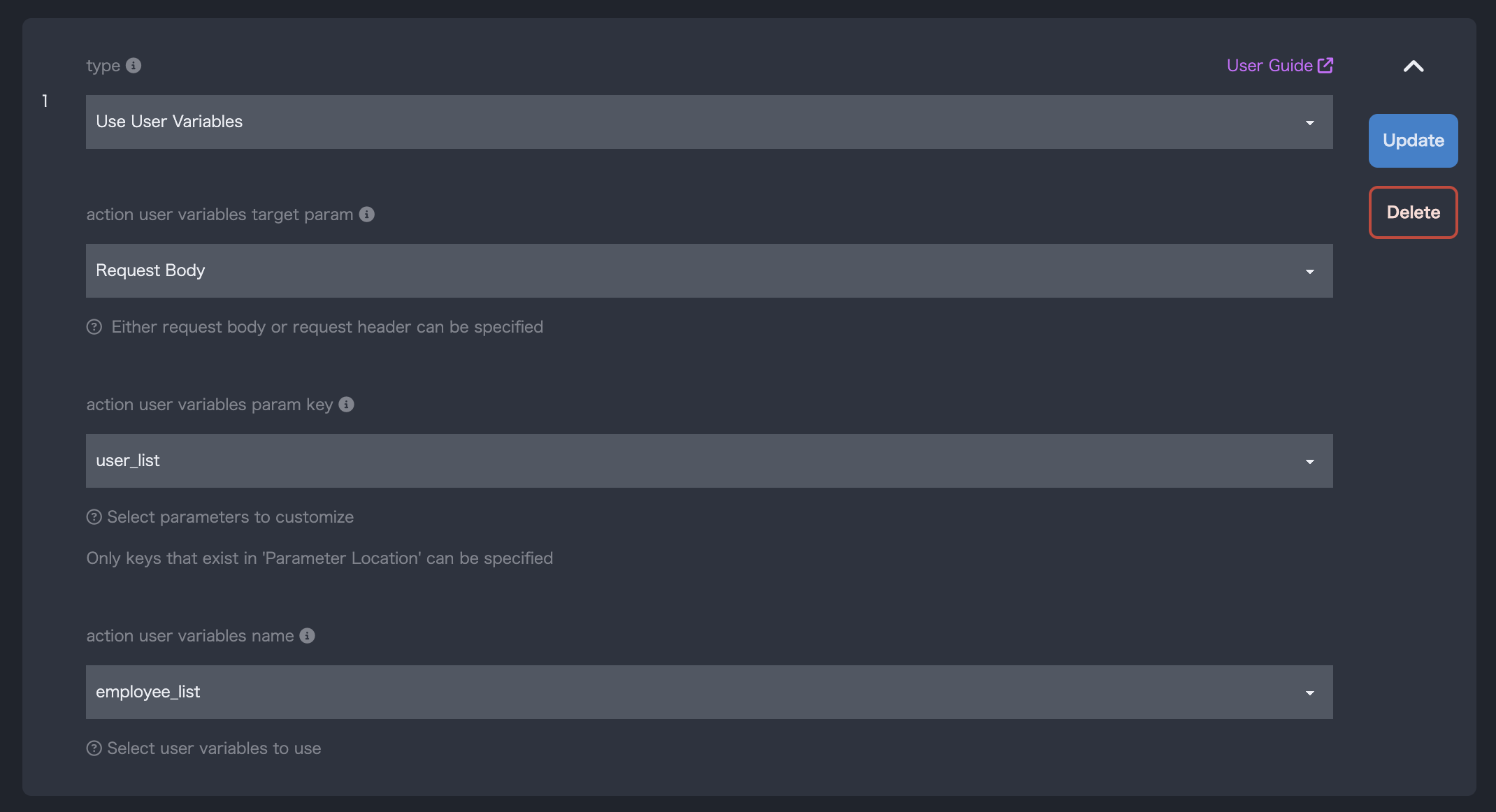
| Parameter Name | Setting Value | Sample |
|---|---|---|
| Customization Name | Using User-defined Variables | - |
| Parameter Location | Specify where the target key is located. If the key is in the request header, specify header_params; if it’s in the request body, specify body_params. |
body_params |
| Parameter Name | Request Key Name | employee_name |
| Variable Name | Specify the user-defined variable name to assign to the parameter. | employee_list |
- Use the content of your own response data as parameters for another request.
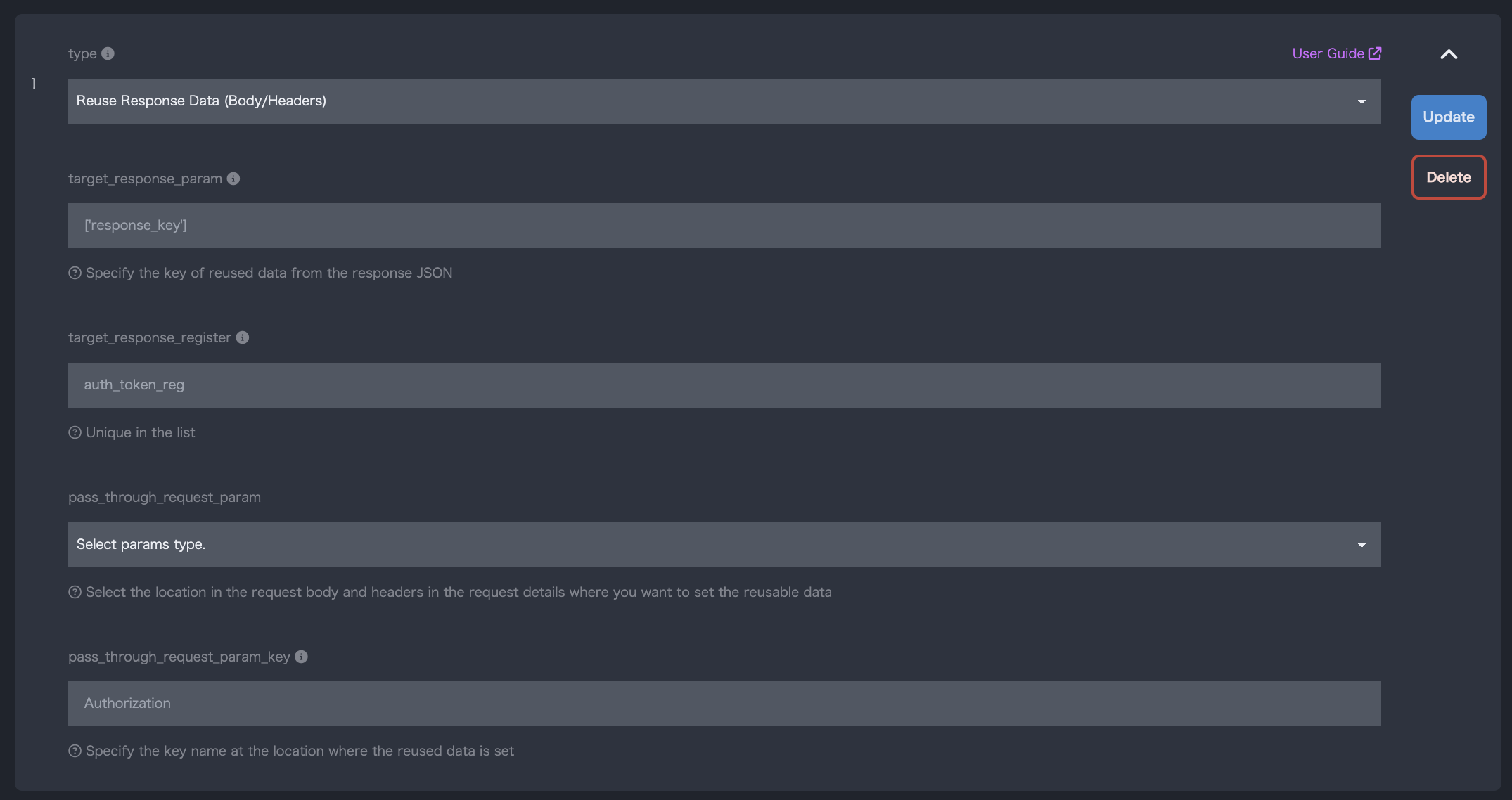
| Parameter Name | Setting Value | Sample |
|---|---|---|
| Customization Name | Reuse of Response Data (Body/Header) | - |
| Source of Reused Data | Select and specify the key of the data to reuse from the response JSON. For example, if you want to reuse the value "abcdefg" of auth_token from a response like Example 1, you would write it as shown in the Sample column 1.If the data is nested, as in Example 2, specify it as shown in the Sample column 2. |
1. ['auth_token']2. ['account']['auth_token'] |
| Name of Reused Data | Set the name for the data to be reused. It must be unique within the scenario. | auth_token_reg |
| Location for Reused Data | Specify where to include the data during reuse. If you want to include it in the request header, specify header_params; if in the request body, specify body_params. |
header_params |
| Request Parameter Name for Reused Data | Set the key name to use during reuse. For example, if you set Authorization in this field and the value obtained from Source of Reused Data is “abcdefg”, and you specify header_params in Location for Reused Data, a parameter like {"Authorization": "abcdefg"} will be added to the header in subsequent scenario requests. |
Authorization |
{
  "auth_token": "abcdefg"
}
{
  "account": {
    "auth_token": "abcdefg"
  }
}
- Use the content of your own response data as parameters for another request.
- If there are automatically generated URL parameters in the scenario, such as
#param1#in Example 3, you can embed the value set in this section as a URL parameter in subsequent scenarios.
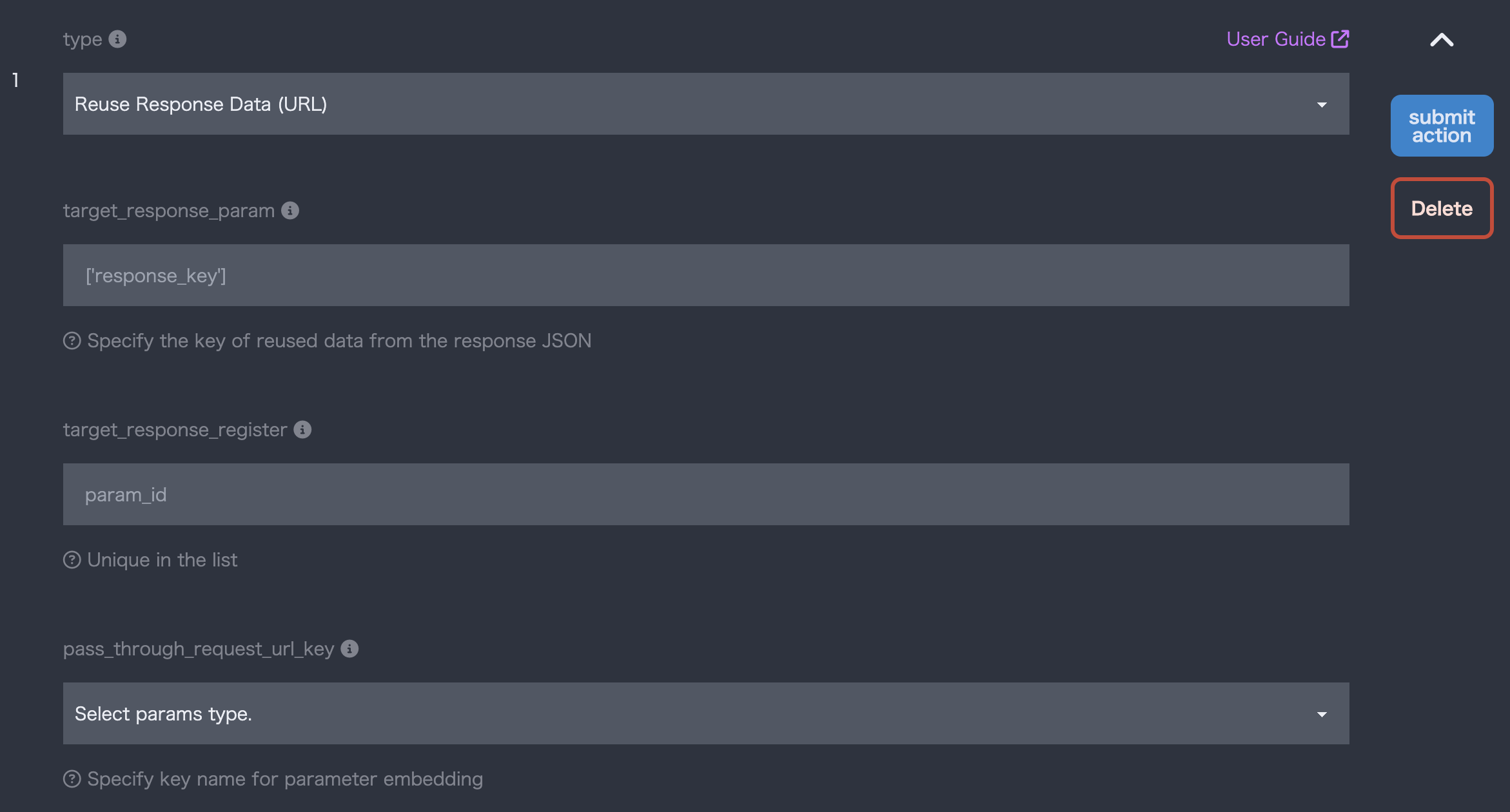
| Parameter Name | Setting Value | Sample |
|---|---|---|
| Customization Name | Reuse of Response Data (URL) | - |
| Source of Reused Data | Select and specify the key of the data to reuse from the response JSON. For example, if you want to reuse the value 3 of id from a response like Example 4, you would write it as shown in the Sample column 1.If the data is in an array, as in Example 5, specify it as shown in the Sample column 2. |
1. ['todo']['id']2. [0]['todo']['id'] |
| Name of Reused Data | Set the name for the data to be reused. It must be unique within the scenario. | param_id |
| Replacement URL Key Name for Reused Data | Specify the key name to be targeted for parameter embedding. | #param1# |

{
  "todo": {
    "id": 3
  }
}
[
  {
    "todo": {
      "id": 3
    }
  }
]
- By setting this item in the request, you can perform load testing including images, js, and css resources.
- If this item is not set, the above static resources will not be retrieved during the request.

| Parameter Name | Setting Value | Sample |
|---|---|---|
| Customization Name | Resource Download | - |
- If the target request includes a file upload process, you can execute an upload scenario using a resource file by setting this item.
- Resource files must be uploaded in advance from the project details screen.
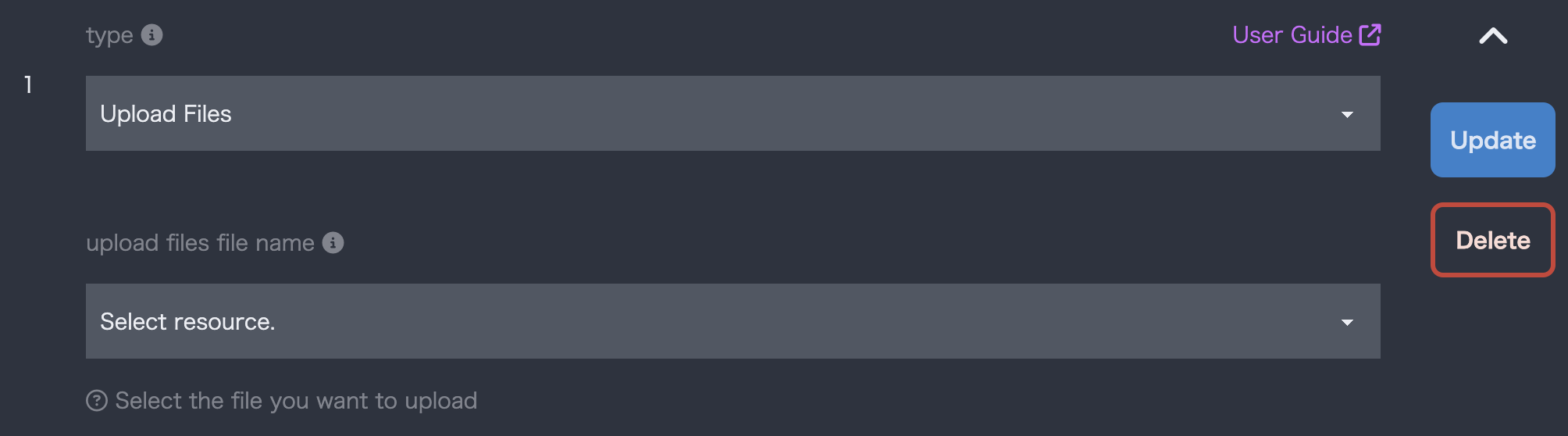
| Parameter Name | Setting Value | Sample |
|---|---|---|
| Customization Name | File Upload | - |
| Upload File Name | Select the resource name to use. Resources must be registered in Mx.Load in advance using the “Upload Resources” function on the project details screen. | sample.csv |
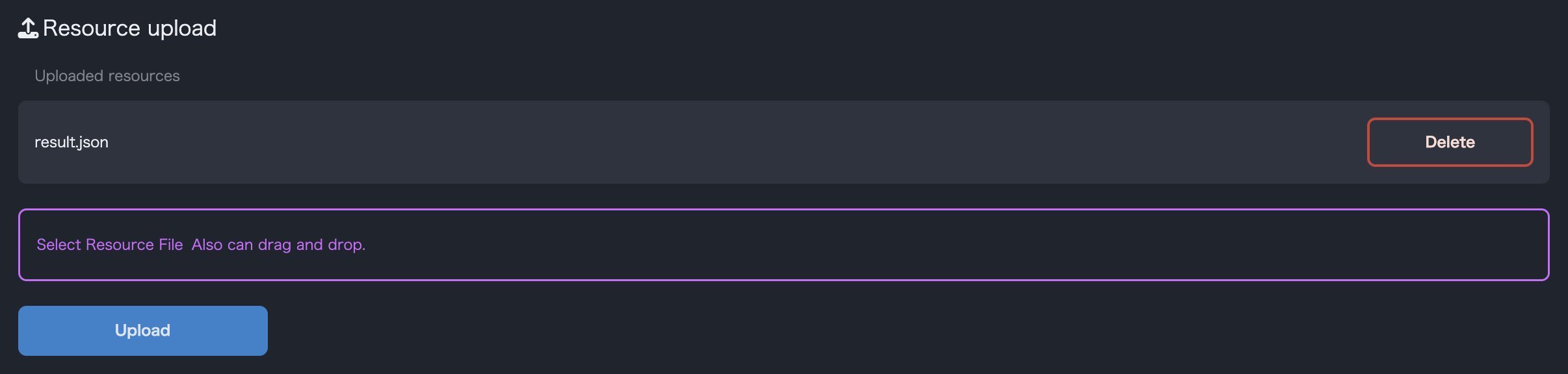
Upload from the project details screen.
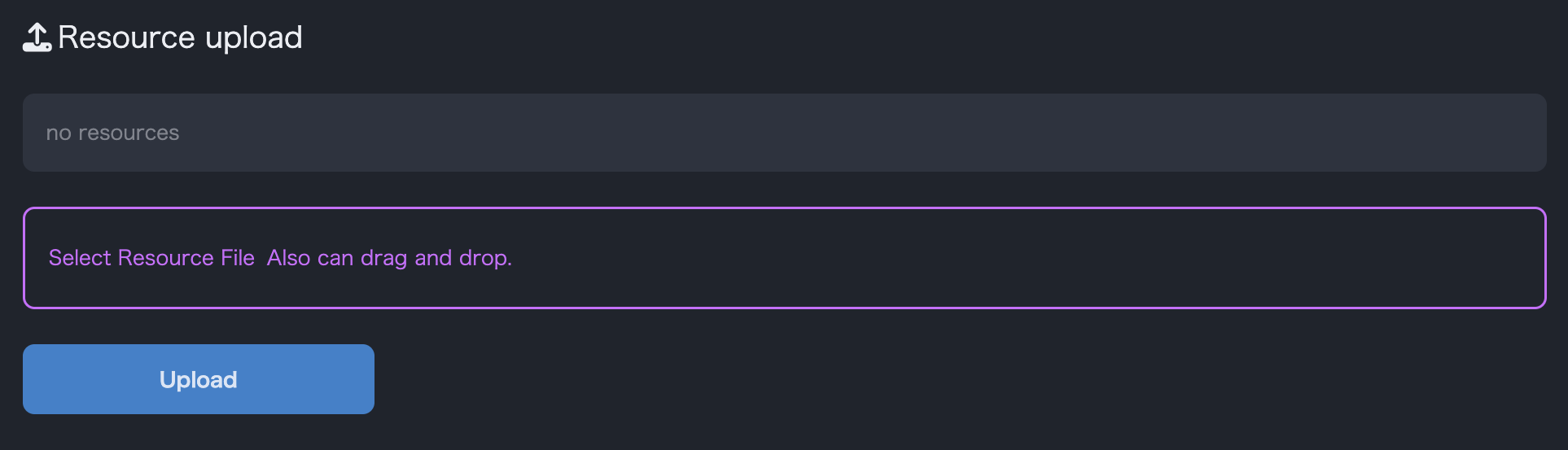
When adding a resource upload action from a scenario, select the uploaded file.
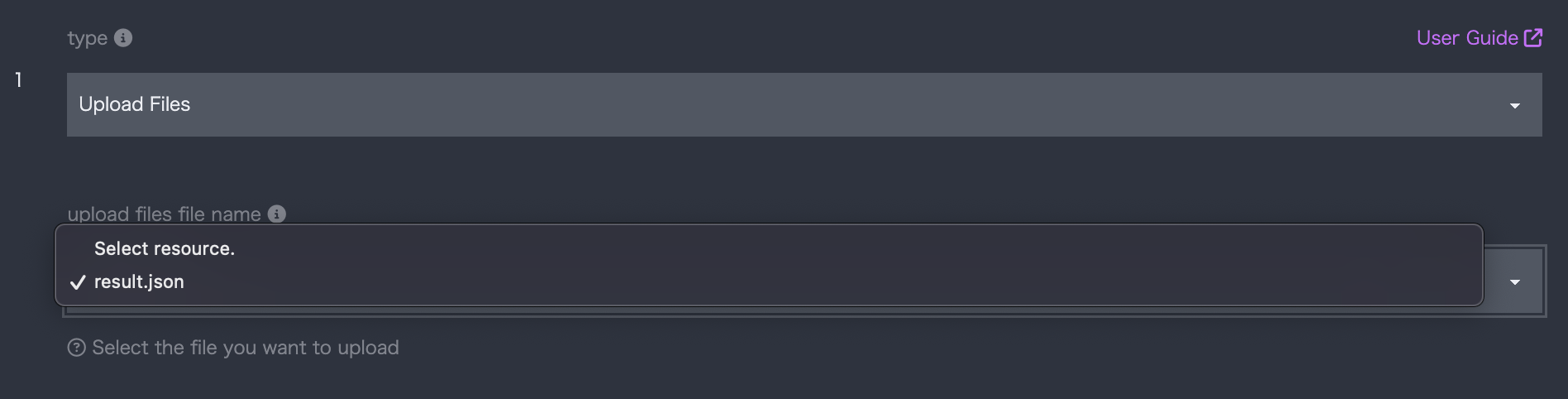
Resources uploaded to Mx.Load can be deleted from the list of uploaded resources.
- You can set request parameters from a pre-prepared CSV file.
- By uploading a CSV file in the file upload, you can select the use of a CSV file from the customization.
- It is also possible to specify multiple CSV files for a request by adding a customization.
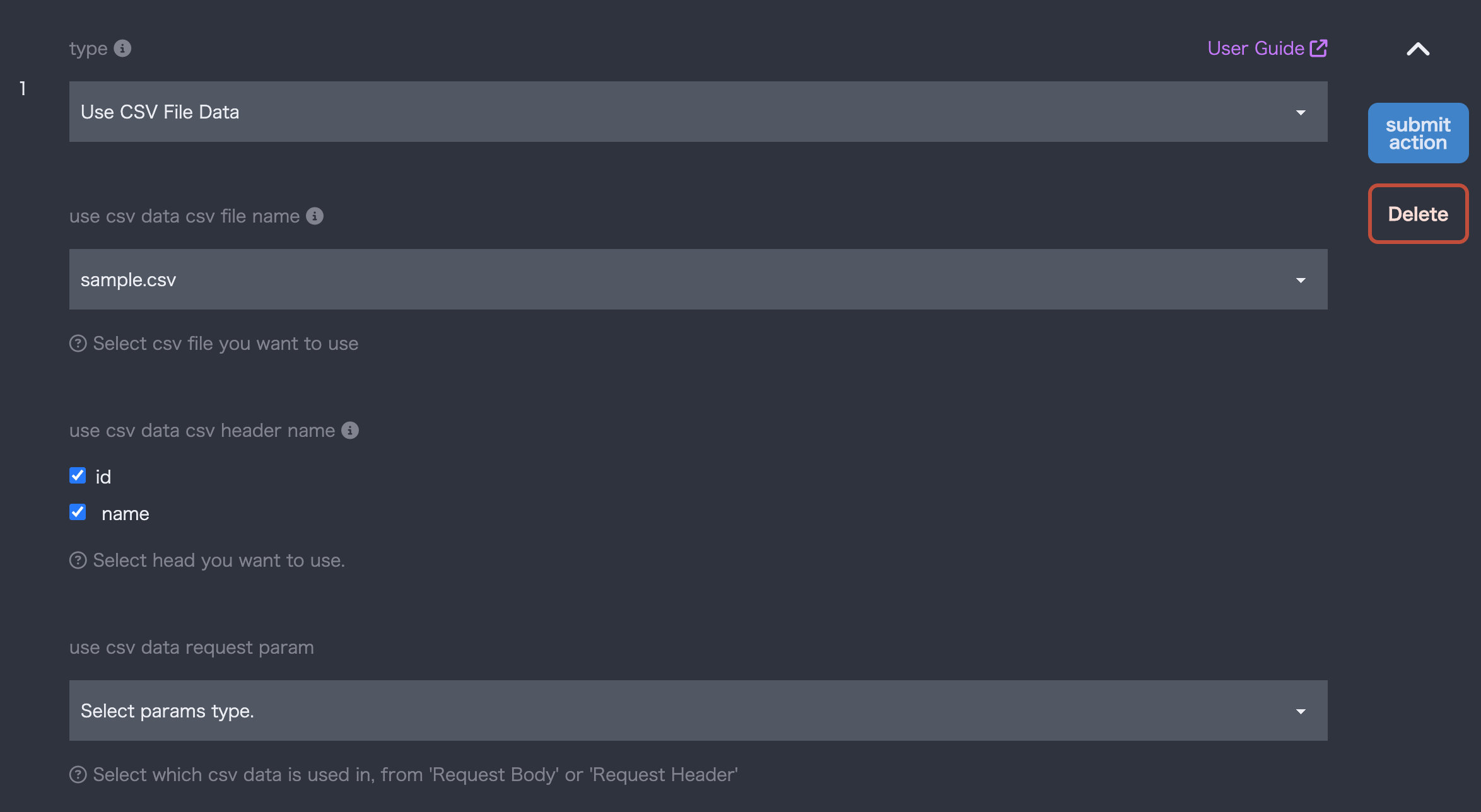
| Parameter Name | Setting Value | Sample |
|---|---|---|
| Customization Name | Using CSV Files | - |
| CSV File Name | Specify the CSV file containing the data you want to use. You can upload a CSV file from the file upload. | sample.csv |
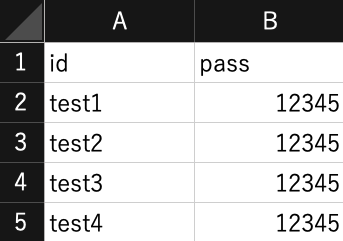
| CSV Header Name | It is possible to specify the reference name written in the header row of the CSV file. You can select the header names you want to use, and you can also specify multiple headers. | id, pass |
| Location to reuse data | You can set whether to use the data in the CSV file in the “Request Header” or “Request Body”. | Request Body |
- The header row must contain reference names separated by commas.
- After the header row, enter the data you want to use.
- The data in the CSV file is used sequentially from the top, and when the last data is used, it returns to the first data.