4.2. Checking Test Results
When you start a load test, the load test details screen is displayed. On this screen, you can monitor the progress of the load test in real-time, and after the test is complete, you can view and download the load test results.
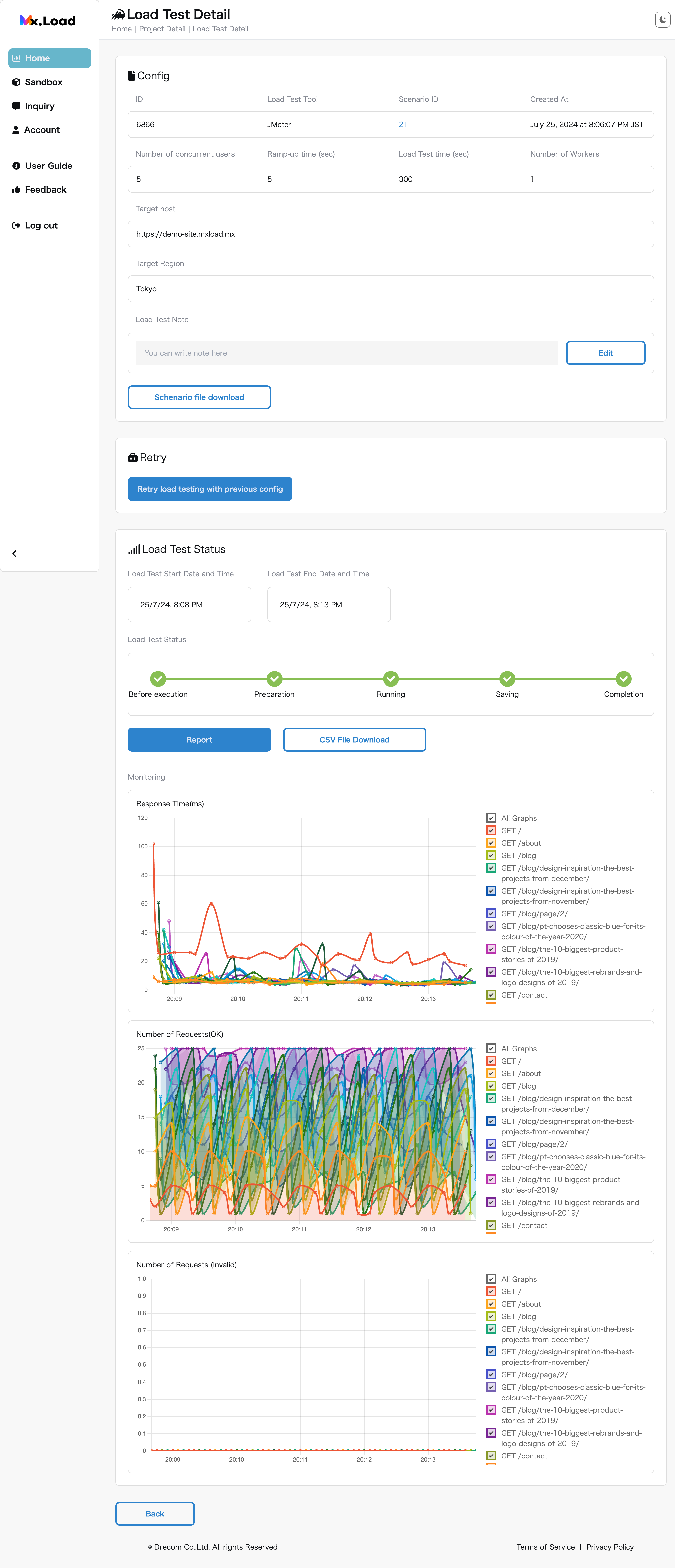
Load Test Details Screen
After the load test ends, you can download the test result file from the Download CSV File button.
The CSV file contains the following columns:
| Column Name | Description |
|---|---|
| label | Path pattern |
| avg_ct | Average connection time |
| avg_lt | Average latency |
| avg_rt | Average response time |
| bytes | Byte size |
| concurrency | Number of concurrent executables |
| fail | Number of failed requests |
| stdev_rt | Standard deviation of response time |
| succ | Number of successful requests |
| throughput | Total number of requests |

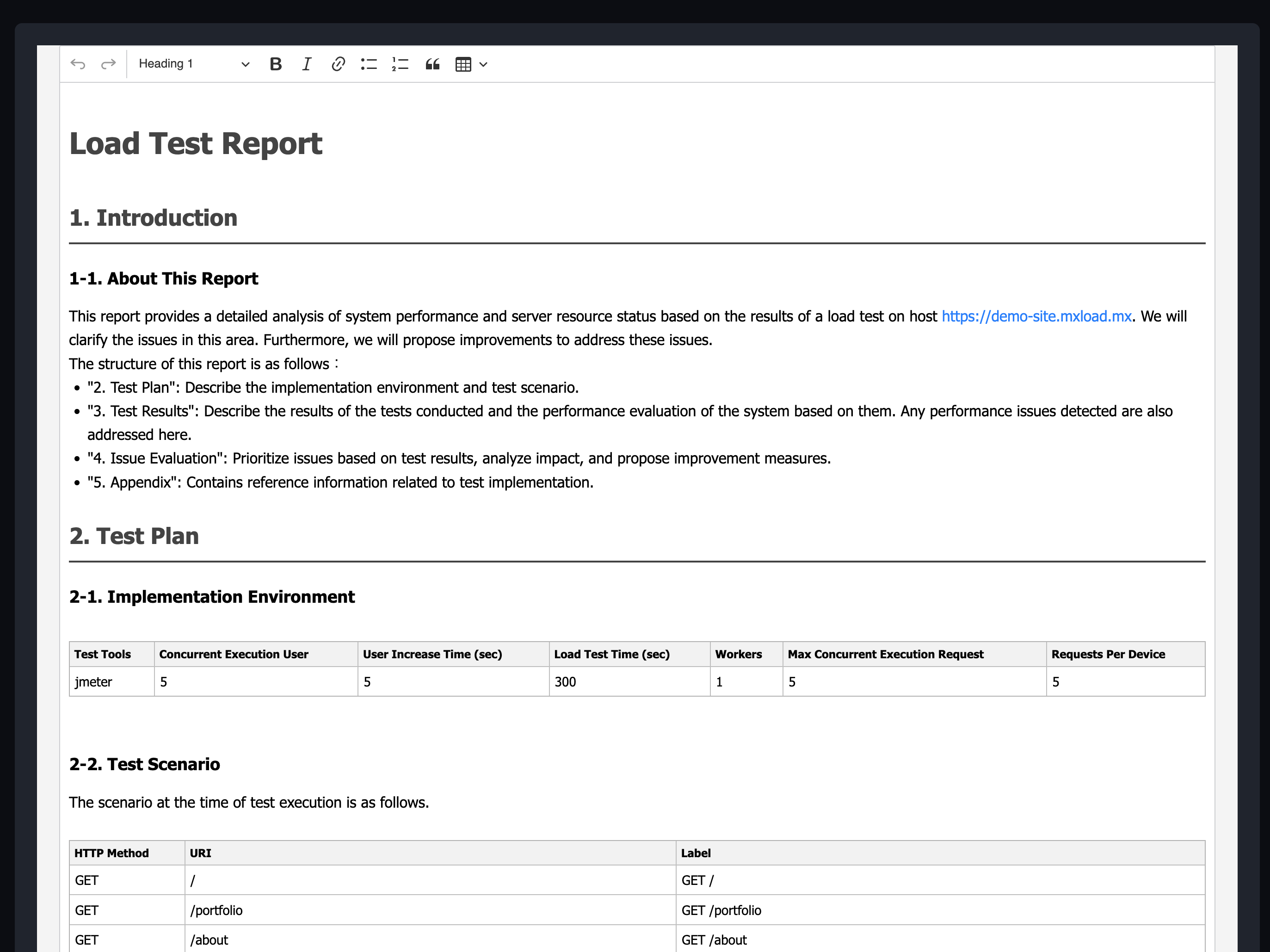
Example Report File
After the load test ends, you can navigate to the result report screen from the Report button.
The result report screen displays a document template with the contents of the result CSV embedded. You can freely add or edit the content.
If you want to print or export the edited content as a PDF, press the Print View button and use your browser’s functionality to output the screen.